

How to discover shadow AI agents in Kubernetes
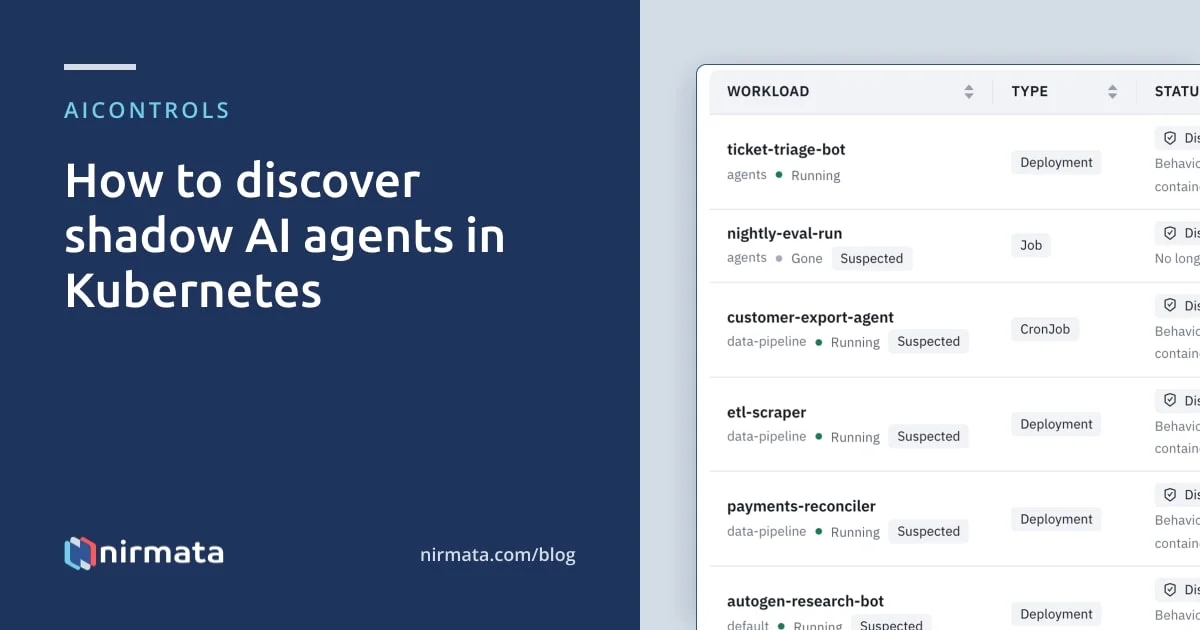
AIControls discovers shadow AI agents in Kubernetes by listing the workloads in your cluster, scoring each one for AI signals, and flagging AI workloads whose traffic does not go through its gateway. Discovery is in-cluster only. It does not see AI use on laptops, browsers or SaaS apps. From the inventory, you register each workload and move it under policy.
Checked against the AIControls documentation at docs.aicontrols.dev, fetched 2026-11-21.
What counts as shadow AI inside a cluster?
The AIControls docs define shadow AI as any AI workload whose traffic does not go through AIControls. In a cluster, that is usually an agent, a model client or an MCP server deployed as an ordinary Deployment or CronJob. Someone gave it a provider API key in an environment variable and shipped it. It never asked for a gateway route, so the gateway’s audit log has no record of it.
That gap is why in-cluster discovery still matters even though it misses laptops. A gateway can only report the calls that reached it. A workload that calls api.openai.com directly produces no audit event, and a clean audit log looks the same as a cluster full of workloads that route around it.
Our earlier post, how to detect shadow AI, covers the manual checks: pod image queries, Ollama API probes and egress log review. This post covers what AIControls automates inside the cluster, and what it leaves to those checks.
What AIControls discovery sees, and what it doesn’t
The scan reads Kubernetes workload objects. It doesn’t read endpoints, and the docs are explicit that an empty inventory does not prove that no AI activity occurred.
| Surface | Covered by AIControls discovery? | Where to look instead |
|---|---|---|
| Deployments, StatefulSets, DaemonSets, Jobs and CronJobs | Yes, listed on every scan | |
Agent Sandbox Sandbox objects, including OpenShell sandboxes |
Yes, when the cluster serves the CRD | |
Custom kinds such as a KServe InferenceService |
Yes, after you add the kind to discovery.additionalKinds |
|
| A workload calling a model or MCP server through the gateway with no registration | Yes, the first call starts a namespace scan | |
| A workload connecting straight to a known AI provider | Yes, with Runtime Controls on | |
| AI tools on developer laptops and other endpoints | No | Endpoint telemetry |
| AI in browsers and SaaS apps | No | Proxy, DNS or SaaS audit logs |
| Clusters where AIControls isn’t installed | No | Install it there, or run the manual checks |
Why AIControls does not find shadow AI on laptops
Discovery runs inside the AIControls installation and lists objects through the Kubernetes API. Its ClusterRole grants list on workload kinds and namespace names, and nothing else. Runtime evidence comes from the Kyverno Runtime sensor, which runs as a DaemonSet on the cluster’s own nodes. Neither has any reach outside the cluster.
So a developer running a local model on a laptop, an employee pasting code into a chat app in the browser, or a team using AI features inside a SaaS product are all out of scope. AIControls does govern some of that traffic through other parts of the product, such as coding agents routed through its gateway, but discovery does not find it.
The scope has a second limit. Workload Trust, which includes discovery, is available only in self-managed installations. A Nirmata-hosted workspace runs in Nirmata’s cluster, so it has no cluster of yours to scan. If shadow AI on endpoints is your main concern, start with the egress and endpoint steps in the manual detection guide instead.
How does discovery decide a workload is AI?
For a workload you haven’t labeled or registered, discovery adds up the evidence and lists the workload when the score reaches minConfidence. The docs give each signal a weight:
- A
nirmata.io/aiornirmata.io/ai-typelabel or annotation: 0.95. - A gateway call from the workload while it had no registration: 0.9.
- An environment variable name with a provider or endpoint keyword, such as
OPENAI_API_KEY,ANTHROPIC_MODEL,LLM_BASE_URLorMCP_URL: 0.85. - Direct egress to a known AI service host, seen by the runtime sensor: 0.8.
- An agent CLI or inference server such as
claude,codexorollamain a process’s arguments: 0.7. - An image path naming a framework or model server, such as
langchain,vllmorollama: 0.65. A model server kind, or a GPU model server, also scores 0.65. - A keyword such as
agentorllmin the name: 0.55, and only alongside another signal.
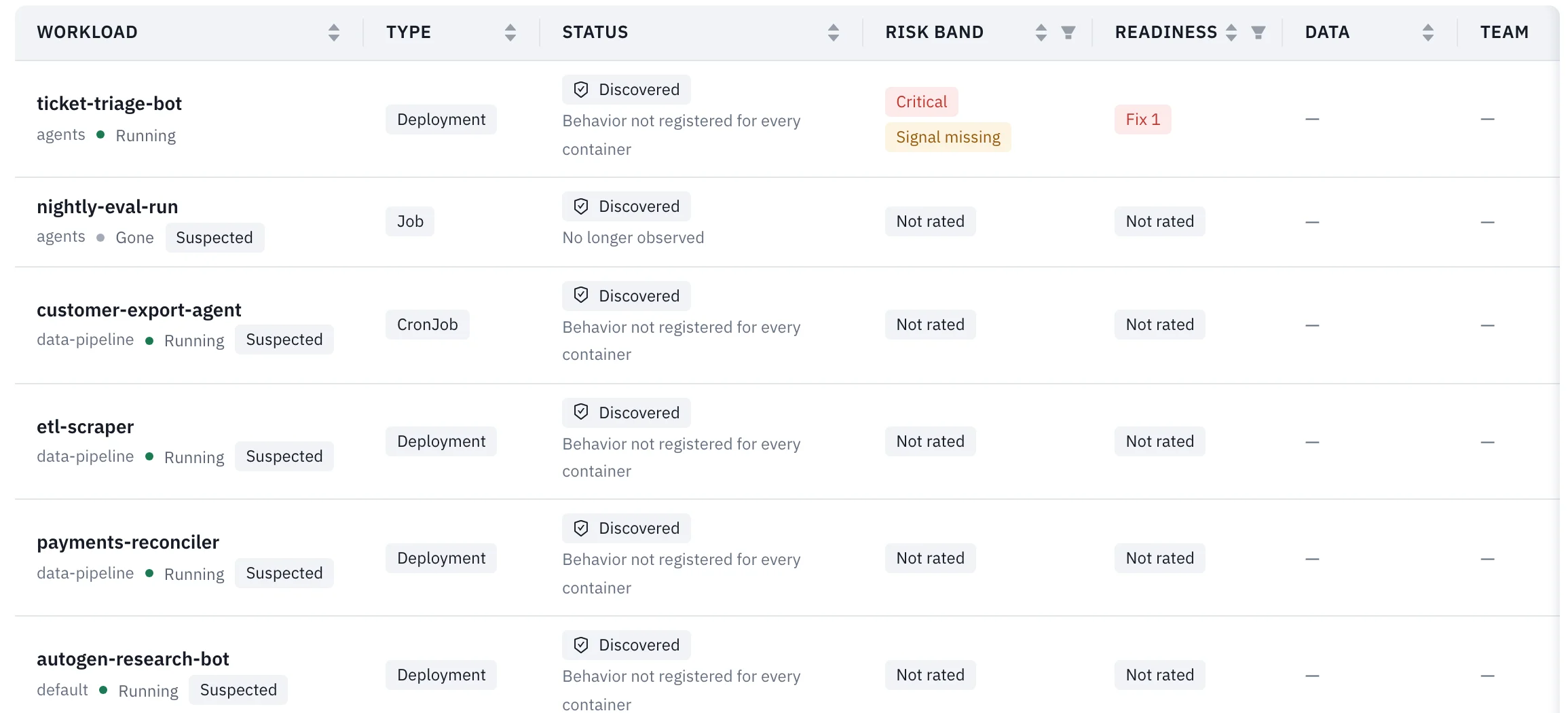
The name rule exists because konnectivity-agent and do-node-agent aren’t AI agents. A workload matched only on heuristics is Suspected. It becomes Confirmed when it declares itself, matches your label selector, or is registered.
How to discover shadow AI agents with AIControls
- Install AIControls with Helm in a cluster you run. Discovery is on by default in a self-managed install.
helm install aicontrols \
  oci://ghcr.io/nirmata/charts/aicontrols \
  -n aicontrols \
  --create-namespace \
-f values.yaml- Set the scan in your values. These are the keys the discovery page documents:
discovery:
  enabled: true
  intervalSeconds: 900
  minConfidence: 0.50
  namespace: ""
workloadTrust:
excludeNamespaces: [kube-system, kube-public, kube-node-lease, datadog]- Label the AI workloads you already know about, so they show up as confirmed rather than suspected:
metadata:
  labels:
    nirmata.io/ai: "true"
nirmata.io/ai-type: agent- In Settings > Workloads > Cluster Discovery, leave Detect unlabeled AI workloads on. Without it, only labeled and registered workloads appear, and the unlabeled ones are exactly what you’re looking for.
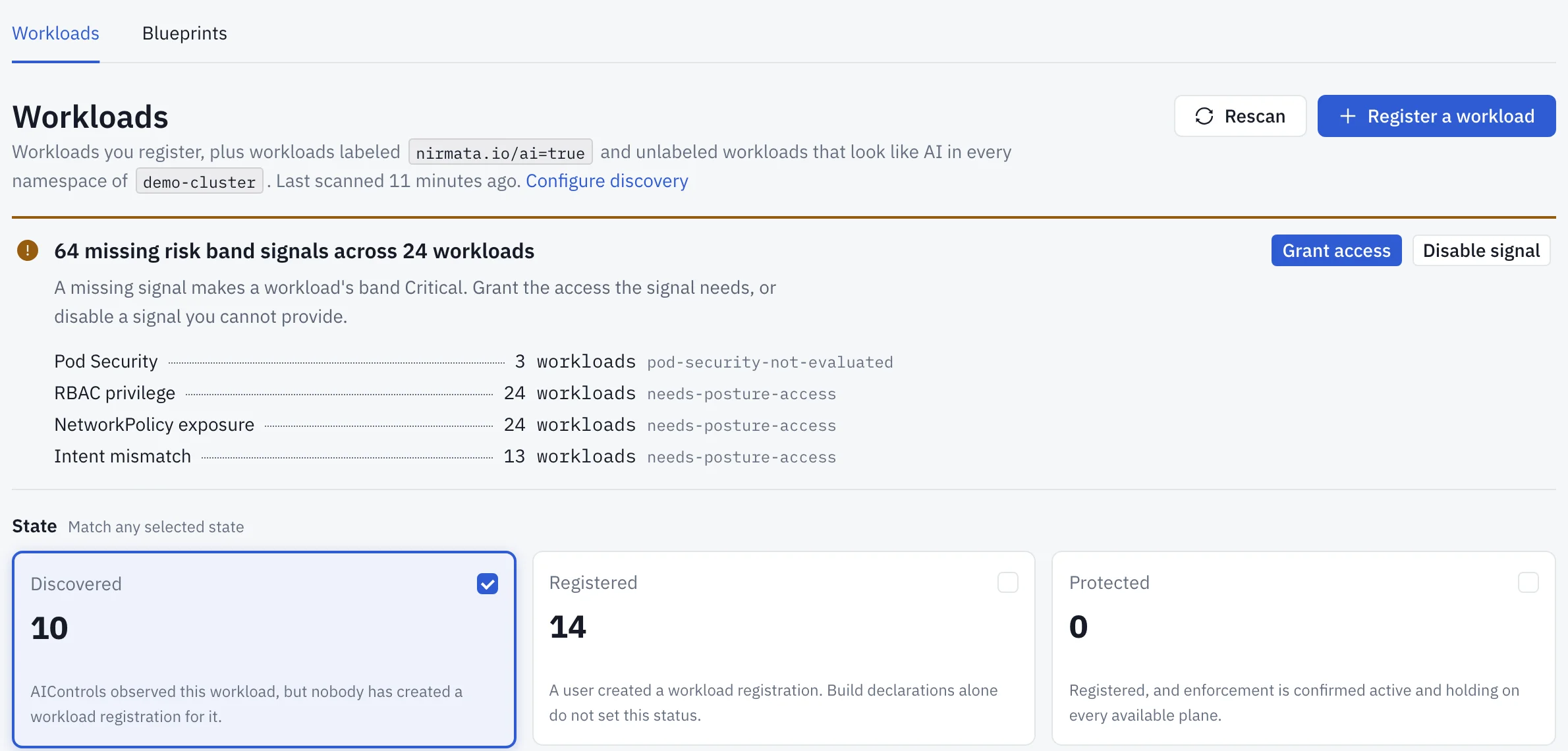
- Open Inventory > Workloads and select the Discovered card, which shows workloads with no registration. A heuristic match carries a Suspected tag. Open its drawer and read Why this workload is listed.
- Select Rescan when you don’t want to wait for the next interval. It needs the “Manage inventory” permission.
Which workloads bypass the AI gateway?
Discovery reads specifications. Two sources tell you what a workload actually did.
The first is the gateway. When an unregistered workload calls a model or MCP server through it, the gateway applies the unregistered workload mode. In Enforce, the default for new installations, the call is denied as workload_not_registered. In Audit, the default after an upgrade from a release without the mode, the call is allowed and recorded. Either way, the workload appears in the inventory within seconds, with the call as its evidence.
The second is Runtime Controls, an eBPF sensor on every node that the admin console marks experimental. It records ungoverned-egress findings when a pod connects directly to a host in the AIControls catalogue of AI services, and agent-exec findings when a process starts an agent CLI. On Inventory > Workloads, the Gateway bypass card ranks workloads by Bypassed destinations, the number of distinct provider destinations each one reached outside governance. An unregistered row there has a Register action that prefills the wizard.
How to move a discovered workload under policy
The docs describe three actions: register, observe, enforce.
- Read the readiness verdict at the top of the workload drawer. Seven rules check Pod Security, least-privilege RBAC, a default-deny egress NetworkPolicy, Kyverno policy results, the RuntimePolicy, traffic through the proxy and a single workload identity. The verdict is advisory, and you can register a workload that fails a rule.
- Select Register…, or Register anyway… for a suspected workload. You pick a Workload Blueprint, which supplies the Purpose, autonomy tier, Access Binding and Runtime Binding, and you bind the workload’s ServiceAccount. Registering lifts the
workload_not_registeredblock within a second. - Observe the generated controls without blocking, and review what enforcement would deny.
- Enable enforcement. The workload shows Protected only after every available enforcement plane confirms its controls are holding.
- Close the direct path. The docs’ backstop is a default-deny egress NetworkPolicy in the agent’s namespace that allows only DNS and the AIControls Service. You apply it yourself, because the chart doesn’t own that namespace. Our post on restricting egress from AI agent pods walks through one.
What to do when a discovered agent is misbehaving now
Registration and enforcement take review time. For an emergency, the kill switch stops one registered workload on the planes you choose: new network connections, new execs and file opens, or requests through the gateway. It blocks new activity only. It doesn’t evict pods or kill running processes. Every switch expires, after 2 hours by default and 24 hours at most.
The kill switch is off until an administrator turns it on under Setup > Settings > General > Features. The network and file planes are RuntimePolicies that the sensor applies, so they depend on Runtime Controls. The file system and exec plane also needs bpffs mounted on each node, and the dialog lists the nodes that can’t enforce it before you arm.
For an unregistered workload, the gateway mode is the lever. In Enforce, it already gets no AI access through the gateway. It can still reach a provider directly until a default-deny egress NetworkPolicy blocks that path.
What a clean inventory does not prove
The runtime controls page calls the discovery heuristics guesswork by construction, and gives two examples. A Deployment named payments-svc that runs an LLM client library is invisible to them, and a static site called ollama-docs is a false positive. The agent CLI signal matches process arguments, not the binary, so a renamed agent isn’t detected.
Three more edges to plan around:
- Discovery doesn’t yet use the sensor’s
mcp-execorungoverned-llmfindings. - An inventory entry doesn’t prove that the workload’s traffic reached the gateway, or that enforcement is active.
- Excluded namespaces are skipped. The default list includes
kube-system,kyvernoandistio-system, so an agent deployed there only appears if it declares itself, matches the selector or is registered.
When you need to prove a workload is governed, check the Runtime tab under Health and its observation coverage as well as the inventory. To fix a false positive, add the nirmata.io/discovery-exclude: "true" label to the workload.
Which AIControls plans include discovery?
Workload discovery and inventory stay open on every plan for self-hosted installs, including Free, where workload agents are listed as discovery only. Acting on what you find needs the Workloads add-on, which Enterprise includes. That covers enforcing, containing or releasing workloads, using the kill switch, changing Blueprints and Runtime Bindings, and setting the unregistered-workload policy. Past the number of workloads you bought, enabling enforcement on one more is refused, and discovery continues.
Workload Trust also needs Kyverno, the CNCF-graduated policy engine, and Kyverno Runtime in the cluster, plus cluster OIDC and RBAC access. The Helm chart installs the runtime sensor as an optional subchart by default.
Enforcing this with AIControls
Discovery gives you an inventory. Registration gives each workload an owner, a Blueprint and one ServiceAccount, and enforcement holds it to what it registered. To read how a registered workload’s ServiceAccount becomes its identity, see how to give AI agents identity in Kubernetes. For the record you keep afterwards, see how to audit AI agent actions in Kubernetes. The wider model is on the governing AI agents hub and the AIControls platform page.
To run discovery against your own cluster, download AIControls and install it with Helm, or request a demo.
Sources
- AIControls: AI Workload Discovery
- AIControls: Workload Protection
- AIControls: Register a Workload
- AIControls: Runtime Controls
- AIControls: Enable Runtime Controls
- AIControls: Network Egress Filtering
- AIControls: Arm a workload kill switch
- AIControls: Default access policy
- AIControls: Feature Availability
- AIControls: Plans and entitlements
Frequently asked questions
Does AIControls find shadow AI on laptops?
No. AIControls discovery lists Kubernetes workload objects in a cluster where AIControls is installed, and the runtime evidence comes from a sensor on that cluster's nodes. Nothing in it runs on a laptop, an endpoint or a browser, and it does not read SaaS usage. For those, you need endpoint telemetry or network logs, and the vendor-neutral shadow AI guide on this blog covers the manual checks.
Does discovery read Secrets or environment variable values?
No. The discovery ClusterRole grants only the list verb on workload kinds and namespaces. Secrets and Pods are not in the grant. Each inventory row records container images, the ServiceAccount and the names of environment variables, never their values. The names are still revealing: a variable called OPENAI_API_KEY tells you which provider the workload is built against.
Can discovery find an unregistered MCP server running in the cluster?
Yes, when the workload carries a signal. MCP server is one of the workload types, an environment variable name such as MCP_URL counts as evidence, and a workload can declare itself with the nirmata.io/ai-type label set to mcp-server. An MCP server with no recognizable name, image, variable or label, and no observed activity, can still be missed.
Is discovery available in a Nirmata-hosted AIControls workspace?
No. Discovery is part of Workload Trust, which the AIControls docs list as available only in self-managed installations, on premises or in a cloud cluster you run. A hosted workspace runs in Nirmata's cluster, not yours, so there is nothing of yours for it to scan. The Workloads page is hidden there, and its API routes return a feature_unavailable response.